Payment Receipt
Chapa provides a comprehensive receipt system that allows users to view detailed payment information and transaction receipts through a simple URL redirect.
Receipt URL Format
After a successful payment, users can access their payment receipt using the following URL format:
https://chapa.link/payment-receipt/{chapa_reference_id}Example Receipt URL
https://chapa.link/payment-receipt/APQ1kcaiCZi2Receipt Information
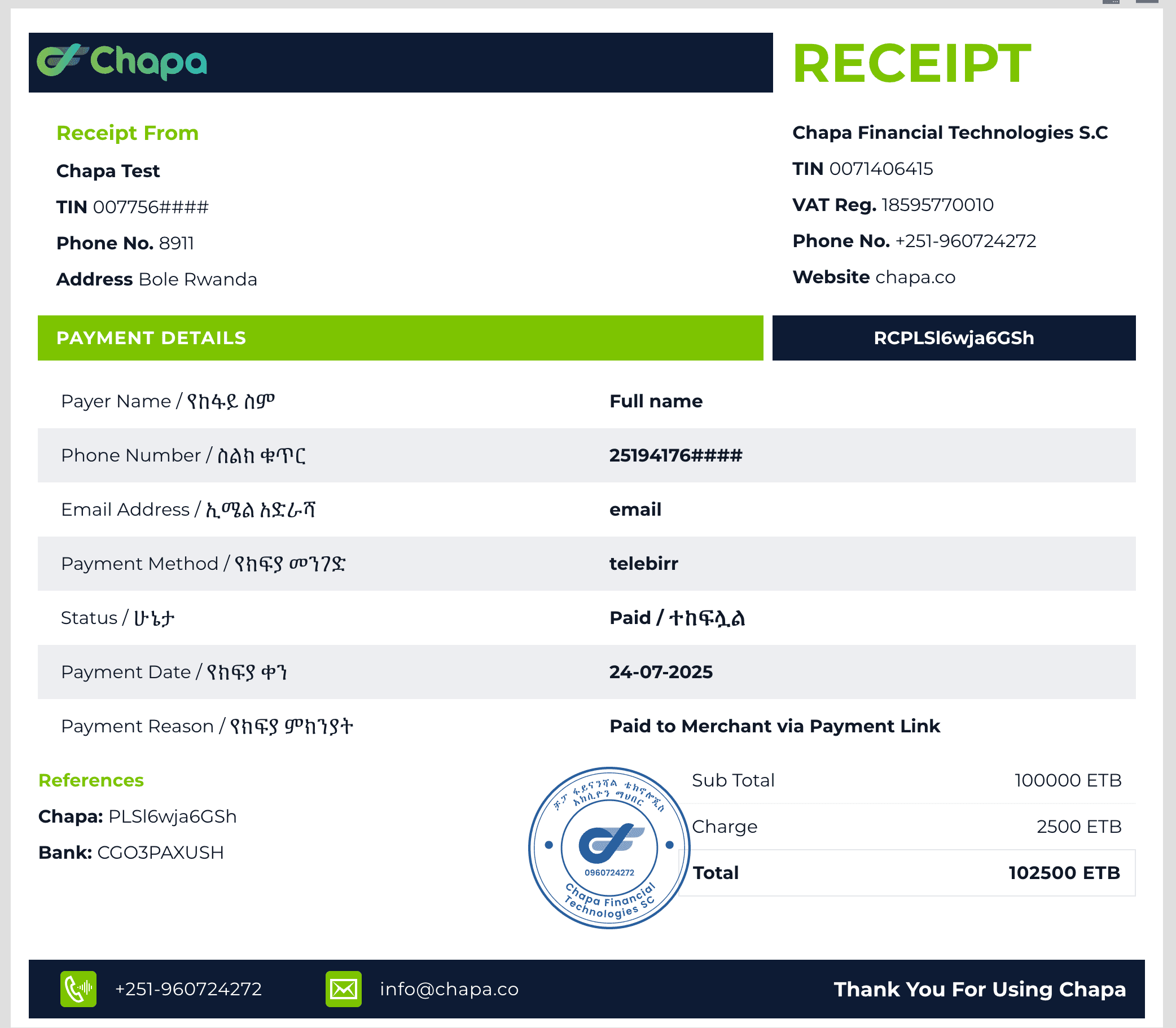
The receipt page displays comprehensive payment details including:
Payment Details
- Reference ID: Unique transaction identifier (e.g.,
APQ1kcaiCZi2) - Payer Name: Customer’s full name
- Phone Number: Customer’s phone number
- Email Address: Customer’s email address
- Payment Method: Method used for payment (e.g., telebirr, card, bank)
- Status: Payment status Paid
- Payment Date: Date and time of the transaction
- Payment Reason: Purpose of the payment
Financial Information
- Sub Total: Original payment amount
- Charge: Transaction fee
- Total: Final amount including fees
Merchant Information
- Merchant Name: Business or service provider name
- TIN: Tax Identification Number
- Phone Number: Merchant contact number
- Address: Merchant business address
- Website: Merchant website
References
- Chapa Reference: Internal Chapa reference ID
- Merchant Reference: Your custom transaction reference
- Bank Reference: Bank transaction reference (if applicable)
Implementation
Redirect After Payment
You can redirect users to the receipt page after a successful payment:
// After successful payment
const referenceId = response.data.reference; // Get from payment response
const receiptUrl = `https://chapa.link/payment-receipt/${referenceId}`;
window.location.href = receiptUrl;
Receipt Features
Print Receipt
Users can print the receipt for their records by using the browser’s print function.
Download Receipt
The receipt page provides options to download the receipt in various formats.
Example Receipt
Here’s what a typical Chapa receipt looks like:
Invoices on the receipt
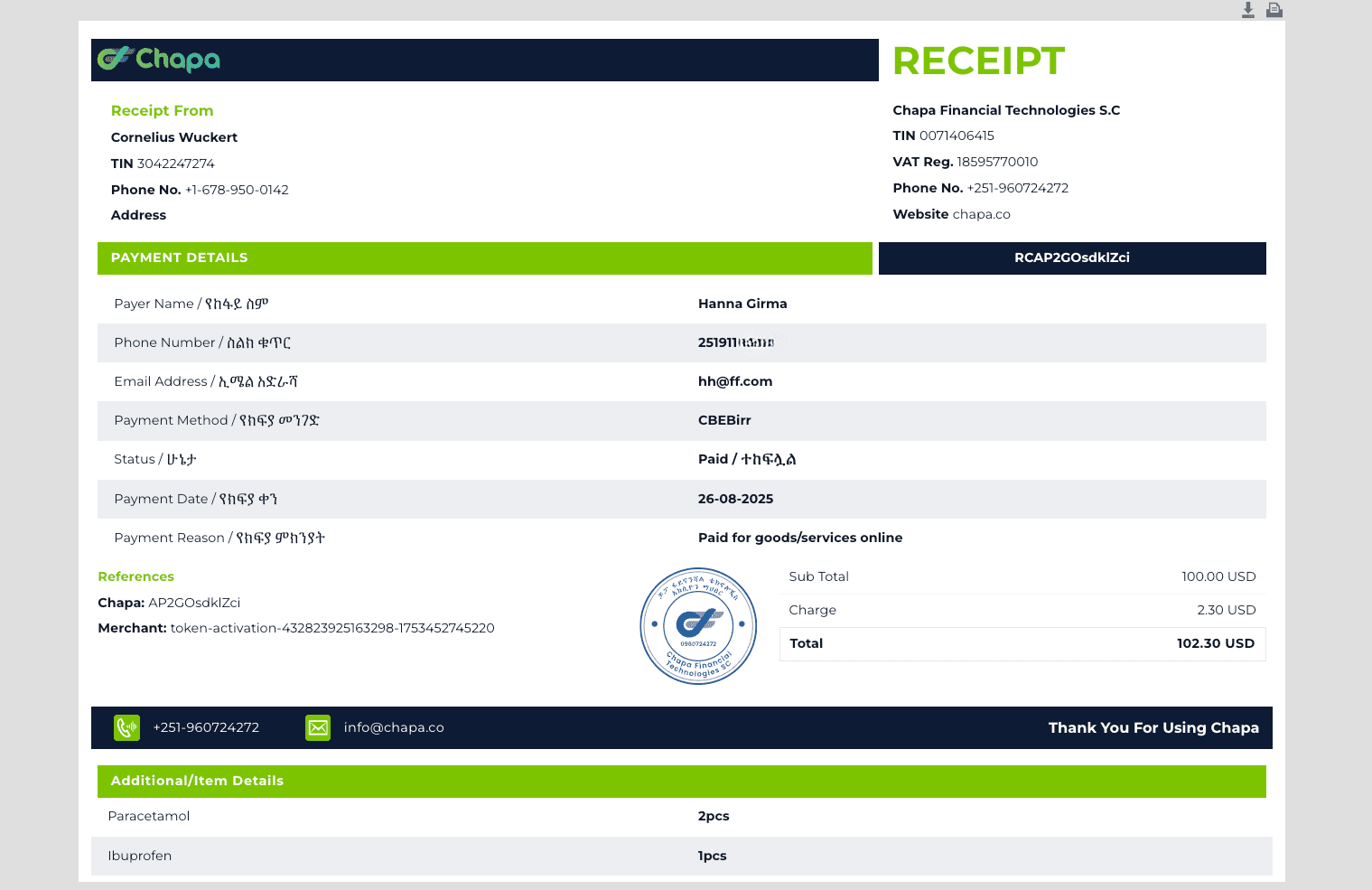
When you initialize a transaction, you can send an invoices array inside meta. Each item has a key (e.g. product name) and a value (e.g. quantity). These line items are shown on the payment receipt.
Example request body:
{
  "amount": 1000,
  "currency": "ETB",
  "email": "abebech_bekele@gmail.com",
  "first_name": "abebe",
  "last_name": "bekele",
  "phone_number": "0912345678",
  "tx_ref": "chewatatdst-6",
  "callback_url": "https://webhook.site/077164d6-29cb-40df-ba29-8a00e59a7e60",
  "meta": {
    "invoices": [
      {"key": "Paracetamol", "value": "2pcs"},
      {"key": "Ibuprofen", "value": "1pcs"}
    ]
  }
}
The invoices you pass here will appear on the receipt for that transaction. They are shown in the Additional/Item Details section at the bottom of the receipt.
Customize Receipts
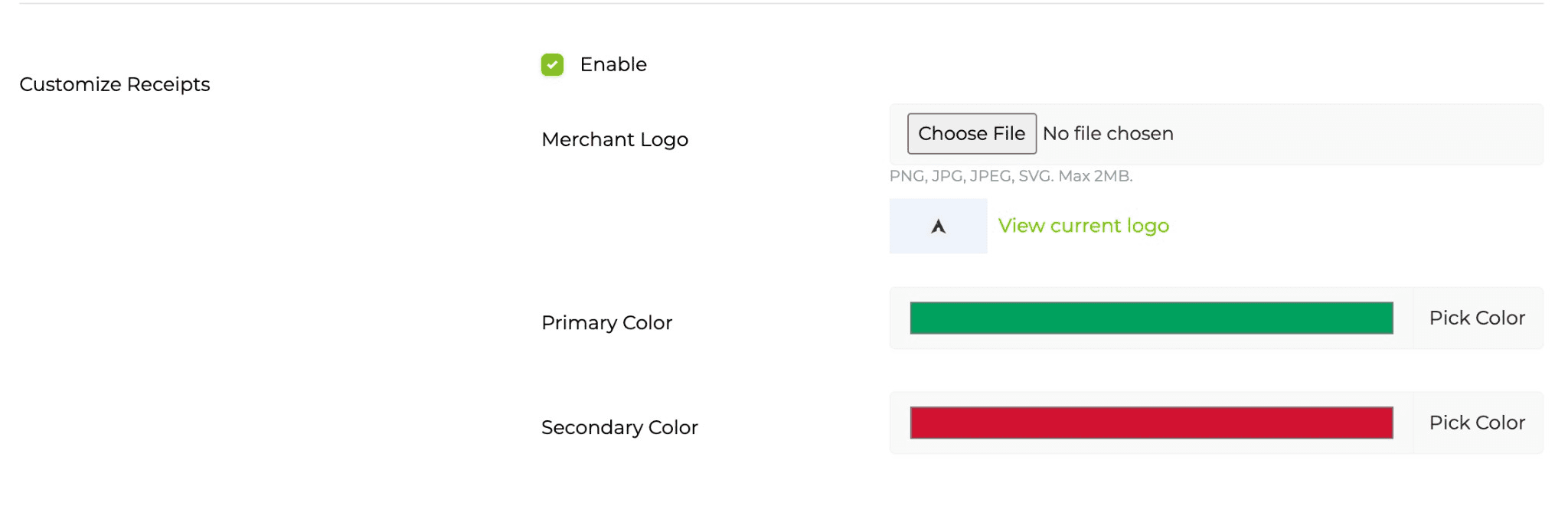
Merchants can customize how their payment receipts look by using the Customize Receipts settings in the Chapa dashboard. This lets you apply your brand (logo and colors) to receipts shown to customers. Custom receipts are enabled only from the merchant dashboard.
To set up custom receipts, go to Settings → Account Settings, then enable the Customize Receipts checkbox. After that, you can upload your logo and choose your primary and secondary brand colors.
Enable
Turn receipt customization on or off with the Enable checkbox in your dashboard. When enabled, your logo and brand colors will be applied to your receipts.
Merchant Logo
Upload your business logo so it appears on the receipt:
- Supported formats: PNG, JPG, JPEG, SVG
- Max file size: 2MB
- Use Choose File to select and upload your logo
- Use View current logo to see the logo currently in use
Primary Color
Set your brand’s primary color (e.g. for headers or key elements). Use Pick Color to choose the color; it will be applied to receipt elements that use the primary color.
Secondary Color
Set your brand’s secondary color for accents or secondary elements on the receipt. Use Pick Color to choose the color.
Custom receipt example
When customization is enabled, your receipts use your logo and brand colors. Below are examples of a custom receipt with merchant branding (primary and secondary colors, logo area, payer details, payment details, financial summary, and Chapa verification seal).

Security
- Receipt URLs are secure and contain encrypted transaction data
- Only authorized users can access receipt information
- Receipts include digital signatures for authenticity verification
Support
For any issues with receipt access or questions about receipt information:
- Phone: +251-960724272
- Email: info@chapa.co
- Website: chapa.co
This receipt system provides a professional and comprehensive way for both merchants and customers to access and verify payment information.